
How to fill in a PDF form
Complete an application, a registration form or a tax form on screen, and send a copy that can't be altered.
PDF forms come in two kinds. Fillable forms have real fields built in: boxes you click and type into, checkboxes, drop-down lists. Flat forms are just a printed page with lines and empty boxes; nothing in the file knows where the answers go. Both can be completed in PDFRonin, in slightly different ways.
Fill in a fillable form
- Open the form in the editor. Fillable fields are outlined on the page.
- Click a field and type. Tick checkboxes and choose options from lists the same way.
- Go through every page; long forms often continue on page 2 or 3.
- Save to keep a copy you can still change, or flatten it (below) for the version you send.
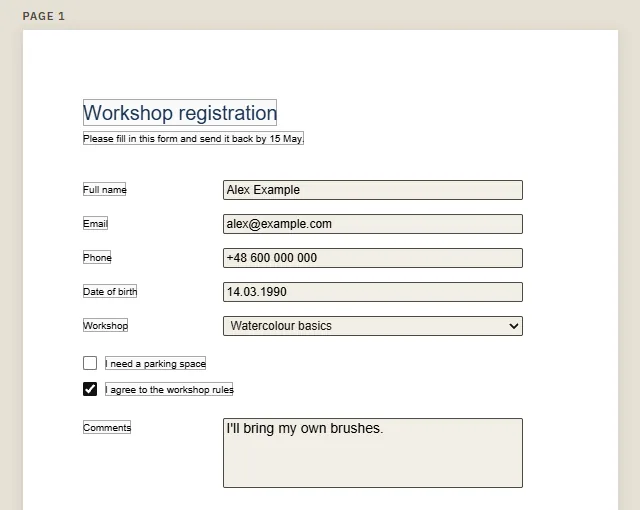
Flatten the form
A filled-in form can still be edited by whoever receives it. Flattening turns the answers into ordinary page content, so they look the same everywhere and can't be changed by accident.
- Tick Flatten forms in the top bar.
- Click Save As. The copy you get is named …-flat.pdf; it has the answers printed on the page and the fields are gone.
Your open document stays a fillable form, so keep the unflattened version too, in case you need to change an answer later.
When to flatten: when you send a completed form by email, when the recipient's viewer shows fields oddly (some phone viewers hide field contents), or before signing, so the answers and the signature form one fixed page. When not to: when the recipient asked for the fillable file, for example to read the answers into their own system.
The form has no fields
Some forms are just printed lines with no fields, often because they were scanned or exported from a word processor without fields. You can still fill them in:
- Right-click where the answer goes and choose Add text box here.
- Type the answer. Set the font size in the panel on the right to match the form's text.
- For a checkbox, add a text box containing a single X and drag it into the box.
- Use the arrow keys to nudge each answer onto its line.
If the form was made in a word processor, its labels are real text. You can often type the answer straight after a label by editing that line; the layout stays as it was.
Common problems
- A field doesn't react to clicks: it may be a read-only field, set by the form's author, or not a field at all. Add a text box over it instead.
- The form says it's signed: some official forms carry a digital signature, which breaks when anything changes. See checking a PDF's digital signature.
Tips
- Sign the form afterwards: see signing a PDF.
- Filling in the same form often? Keep your empty copy, and save each completed one under a new name with Save As.