
How to edit text in a PDF without breaking the layout
Fix a typo, change a date or rewrite a whole paragraph, and keep the document looking exactly as it did before.
Most online PDF editors handle text changes in one of two ways. Some cover the old words with a white box and type new ones on top. Others convert the whole PDF to a Word-like document and back. The first leaves visible patches and mismatched fonts. The second often moves everything: spacing changes, tables slip, and a one-page letter becomes two pages. PDFRonin edits the paragraph you changed and nothing else. This guide shows how, and what to do when something doesn't go as expected.
Steps
- Open the PDF. Go to the editor and click Open, or drop the file onto the page. Files up to 50 MB work. Nothing to install, no account.
- Double-click the text you want to change. The whole paragraph opens for editing, with a small toolbar above it. You can also select the paragraph and choose Edit text in the tool row.
- Type your changes. Lines re-wrap inside the paragraph's column as you type, the way they would in a word processor.
- Click outside the paragraph (or press Ctrl+Enter) to apply the change. Press Esc to cancel it and get the original text back.
- Save. Save writes back to the file you opened (in Chrome and Edge on a computer). Save As (Ctrl+Shift+S) saves an edited copy under a new name. In other browsers and on phones, saving downloads the edited file.
Styling text
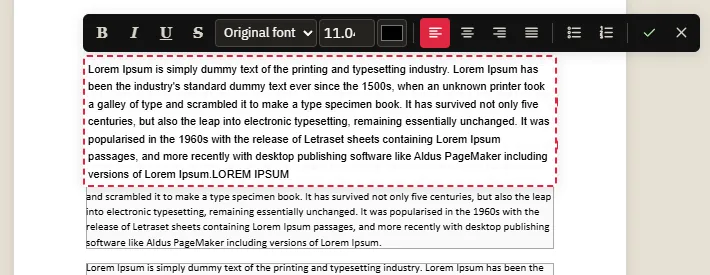
While a paragraph is open for editing, select part of its text and use the toolbar:
- bold, italic, underline and strikethrough;
- font size and colour;
- font family, for the selected words or the whole paragraph;
- alignment: left, centre, right or justified;
- bulleted and numbered lists. Tab and Shift+Tab move a list item a level in or out.
Styling works on any part of the paragraph, so you can make a single amount bold or turn one word red without touching the rest.
What happens when the text gets longer or shorter
If your new text needs more lines, the paragraph grows and the content below it moves down to make room. Only the lines that actually changed are set again; lines above your edit keep their exact original position. When a column fills up, text continues in the next column or on the next page. When text gets shorter, the content below moves back up and pages that end up empty are removed.
Page numbers such as "Page 2 of 3" are recognised and updated when pages are added or removed.
Why the rest of the page doesn't change
A PDF isn't stored as paragraphs. It is a list of drawing instructions: "put these letters at this position in this font". PDFRonin reads those instructions, works out which ones form each paragraph, and when you edit, it rewrites only the instructions for that paragraph. Everything else on the page (other text, lines, images, the fonts themselves) is written back to the file exactly as it was, byte for byte.
The edited paragraph is set in the document's own font. PDFs often include only the letters a document actually uses, to keep the file small. If you type a letter that isn't in that subset (for example "ł" in a document that never had one), the missing letter comes from the same font installed on our server, or from one with identical letter widths. It blends in, and the spacing stays right.
Common problems
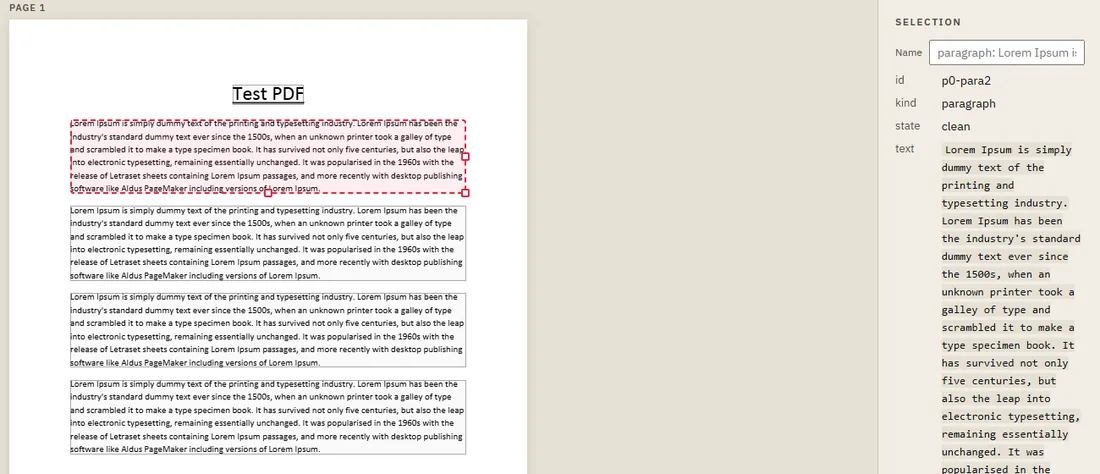
Double-clicking selects a single line, or nothing
Some PDFs place every line, or even every word, separately, so there is no paragraph to find. Lines are still grouped where they line up, but in unusual layouts you may get smaller pieces. Edit each piece, or select several and move them together.
The text can't be edited at all
If the page is a scan or a photo, the "text" is a picture of text. There are no letters to change. Cover the old words with a text box that has a white fill, and type the new text in it.
A character comes out as a box or is refused
If no available font can draw a character (some symbols and rare scripts), the editor tells you which characters are the problem instead of saving a broken file. Remove them or use a different character.
The document had a digital signature
Any change, even a single comma, makes an existing digital signature invalid. The editor warns you when a document is signed. See checking a PDF's digital signature.
Tips
- Undo with Ctrl+Z and redo with Ctrl+Y. Every change can be undone, all the way back to the original.
- To change several things in one document (a date, a number, some amounts), edit them one by one, then save once.
- Press ? in the editor to see every keyboard shortcut.
- Text inside a table? See editing a table.