
How to add text boxes and images to a PDF
Annotate a scan, add a note to a contract, put your logo on a page, or move and remove what's already there.
Add a text box
- Open the PDF in the editor.
- Click Insert → Text box, or right-click the spot and choose Add text box here.
- Type your text. In the panel on the right, set the size, font and colour, and a fill (background colour) if you want the box to stand out or to cover what's underneath.
- Drag the box into place; drag its corners to resize it. The text re-wraps to the new width.
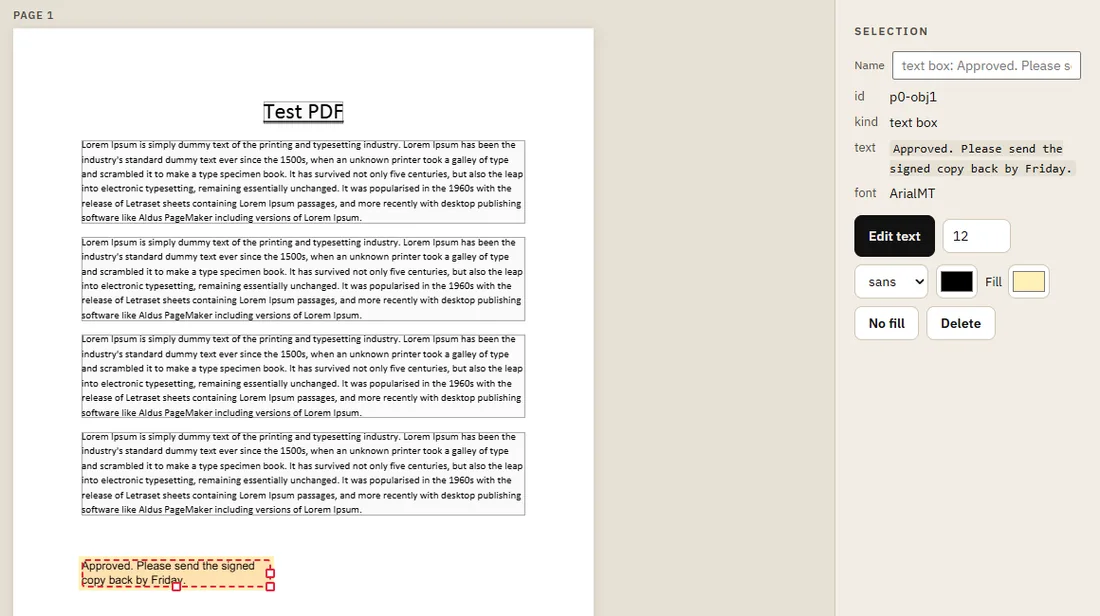
Cover and replace text on a scan
On a scanned page the text is a picture, so it can't be edited directly. The usual fix:
- Add a text box over the old words and give it a white fill (or the colour of the paper), so it hides what's underneath.
- Type the new text and pick a font and size close to the scan's.
- Zoom in and nudge the box with the arrow keys until it lines up.
Note that covering isn't the same as removing: the original picture is still in the file underneath. Don't use a box to hide confidential information (account numbers, personal data) from someone who will receive the file.
Add an image
- Click Insert → Image, or right-click and choose Add image here.
- Pick a picture (PNG, JPG and other common formats).
- Drag it into place and resize it from the corners.
For a signature, use Insert → Signature instead: it removes the paper background from a photo for you.
Move, recolour or delete what's already there
Click anything on the page to select it: a line, a shape, a logo, a block of text. Then:
- drag it to move it, or nudge it with the arrow keys;
- press Delete to remove it;
- change its colour in the panel on the right;
- right-click it for more, such as bringing it to the front or returning it to its original place.
Shift+click selects several objects, or drag a selection box around them. Group them (Ctrl+G) to move them together later. If something is hard to click because other objects lie on top of it, right-click the spot: the Objects here list shows everything under the pointer.
Tips
- Turn on Show object types in the Properties panel to see what each part of the page is: text, image, shape or table.
- The Move (M) and Resize (R) tools make dragging objects easier on crowded pages.
- Every change can be undone with Ctrl+Z.