
How to edit a table in a PDF
Change prices in a price list, add a column to a report, or fix a row, without rebuilding the table from scratch.
A PDF has no idea what a table is. What looks like a table is a set of separate pieces of text plus a set of lines and coloured rectangles that happen to line up. That's why tables are the first thing to fall apart in most PDF editors. PDFRonin recognises the grid (the cells, the borders, the header row, merged cells) and edits it as a table: when a cell needs more room, its row grows and the borders follow.
Change a cell
- Open the PDF in the editor.
- Click the table to select it. Its cells are outlined, so you can see what was recognised.
- Double-click a cell and type the new value. Click outside the cell to apply, or press Esc to cancel.
If the new text doesn't fit, the cell wraps it onto more lines and the whole row grows, pushing the rows below down. Numbers and amounts never wrap mid-number; the column makes room for them instead. You can also type into a cell that was empty.
Add or delete a column or row
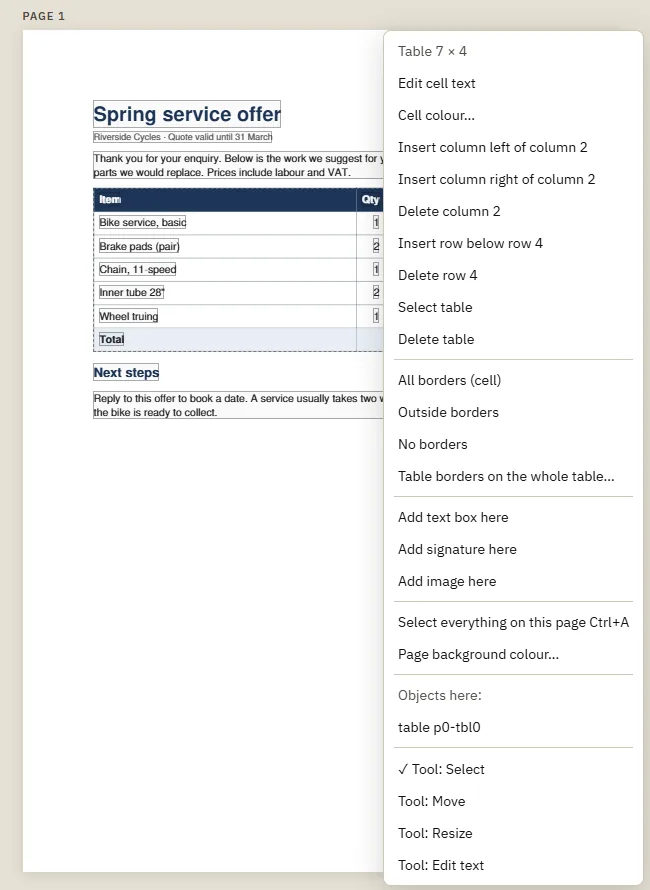
- Select the table, then right-click a cell.
- Choose to insert a column to the left or right of it, insert a row below it, or delete the cell's column or row.
A new column takes its space from the others, which get narrower, so the table keeps its width on the page. Text in narrowed columns re-wraps. Borders and cell backgrounds are redrawn to match, and a new row copies the look of the row it was inserted below.
Resize columns and the table
Choose the Resize tool (R) and drag the table's handles to make it wider, narrower or taller. Content below the table moves to make room when it grows.
Colours and borders
Right-click a cell to set its fill colour. Shift+click another cell first to colour a whole range at once, for example a header row or a total. Right-click the table for its borders: all borders, outside borders only, or none.
Tables that continue on the next page
When a table grows past the bottom of the page, the rows that no longer fit move to the next page. In the table's details in the Properties panel on the right you can choose Repeat the header row on the next page, so the continued part starts with the column titles again, as a reader would expect.
Common problems
The table isn't recognised
Tables are found from their lines and boxes. A "table" made only of aligned text, with no borders or shading at all, looks like separate paragraphs. You can still edit each piece of text directly, see editing text.
Totals don't update
A PDF table stores the numbers as text, not as formulas. If you change a price, change the total yourself, along with any other figure that depends on it.
A merged cell behaves as one cell
That's intended: a cell that spans several columns (for example a "TOTAL" label) is kept as one cell, with its text and colour.
Tips
- Press Esc while editing cells to go back to the whole table; drag the table to move it.
- Every change can be undone with Ctrl+Z, including inserted columns.
- Turn on Show object types in the Properties panel to see which parts of the page are tables, text, images and shapes.