
How to reorder, rotate and remove PDF pages
Fix a scan that came out sideways, take out a blank page, or move the summary to the front.
All page work happens in the Pages pane on the left of the editor. You make your changes there as a draft, see the result in the thumbnails, and apply them in one step.
Steps
- Open the PDF in the editor. The Pages pane on the left shows a thumbnail of every page.
- Reorder: drag a page to its new place. On a touch screen, use the arrow buttons on the thumbnail to move it left or right.
- Rotate: right-click a page and choose Rotate left or Rotate right.
- Remove: select a page and press Delete, or right-click it.
- Duplicate or add: right-click a page to duplicate it (Ctrl+D) or Insert blank page after it. Add PDFs or images adds pages from other files.
- Click Apply page changes, then save. Discard page changes throws the draft away.
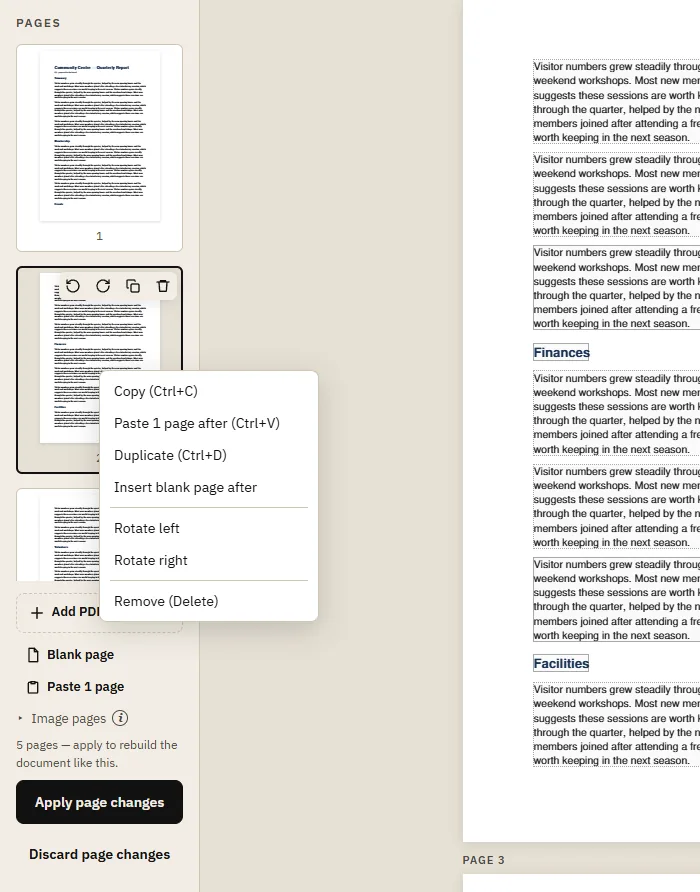
Selecting several pages
Ctrl+click picks single pages and Shift+click picks a range, so you can rotate, move or remove many pages at once. For example, to remove every blank back side from a double-sided scan, Ctrl+click each blank page and press Delete once.
Copy, cut and paste pages
Ctrl+C, Ctrl+X and Ctrl+V copy, cut and paste pages, inside one document or between documents open in different tabs. The Paste button in the Pages pane does the same as Ctrl+V.
Rotating: which way?
Look at the thumbnail. If the top of the text points left, the page needs Rotate right; if it points right, Rotate left. Upside down means rotating twice. Rotation is stored in the file the way every PDF viewer understands, so the page shows the right way up everywhere, and printing follows it too.
Do edits on the pages survive?
Yes. Text you edited, signatures and images you added stay with their pages when you reorder, rotate or duplicate them.
Common problems
- Nothing changed after reordering: the changes are a draft until you click Apply page changes.
- A page shows as landscape when it should be portrait: that's the page's rotation, not its size. Rotate it back.
Tips
- To combine documents, see merging PDFs.
- Page numbers printed on the pages ("Page 2 of 5") are part of the page content; edit them as text if the order changed.