
How to merge PDFs and turn images into a PDF
Put an invoice and its attachments into one file, or turn phone photos of receipts into a single PDF you can email.
Merge PDFs
- Open the first PDF in the editor.
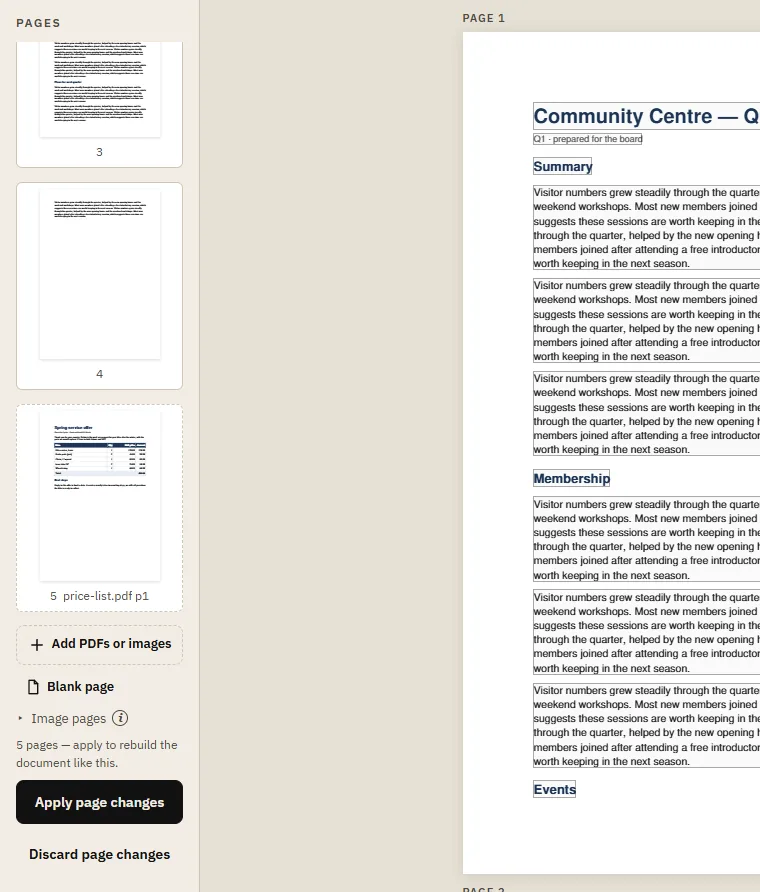
- In the Pages pane on the left, click Add PDFs or images and pick the other files. You can pick several at once. Their pages are added to the list. You can also drop files straight onto the Pages pane.
- Drag pages into the order you want. Ctrl+click and Shift+click select several pages to move together.
- Click Apply page changes. Until you do, nothing in the document has changed, and Discard page changes takes you back.
- Click Save As to save the merged PDF under a new name.
Pages keep their own size and orientation, so an A4 letter and a landscape spreadsheet can sit in the same file.
Copy pages between documents
Open several PDFs: each opens in its own tab at the top. Select pages in one document's Pages pane, press Ctrl+C, switch to the other tab, select the page they should follow and press Ctrl+V. This is handy when you need only two pages out of a long file.
Turn images into a PDF
- On the editor's start screen, click Create PDF from images, or simply drop the images onto the page.
- Pick one or more photos or scans (JPG, PNG and other common formats). On an iPhone, the photo picker hands photos over as JPG. Each image becomes a page, in the order you picked them.
- Reorder or rotate the pages in the Pages pane if needed, then save.
Page size and quality
Under Image pages you choose how images become pages:
- Page size: each page the size of its image, or Fit to A4 / Fit to Letter, which places the image on a standard page with a margin. Choose A4 or Letter if the PDF will be printed.
- Resolution: Max 150 dpi keeps files small (good for email and receipts), Max 200 dpi or Max 300 dpi keeps fine print sharp, and Full resolution keeps the photos exactly as taken. Phone photos are large; at full resolution a 20-page PDF can easily pass 50 MB.
Tips for photographing documents
- Lay the page flat on a dark surface, in daylight, and hold the phone straight above it.
- Turn off the flash: it causes a bright glare in the middle of the page.
- Crop the photo to the page edges before adding it; the PDF looks far cleaner.
Common problems
- A page came out sideways: right-click it in the Pages pane and choose Rotate left or Rotate right.
- The file is too big to email: make it again at Max 150 dpi.
- A file won't open: each file can be up to 50 MB. Password-protected PDFs must be unlocked in the program that created them first.
Need just some pages of a file? Add it, then remove the pages you don't want; see organising pages.