
How to edit a PDF on your phone
Sign a document someone just emailed you, fix a date or fill in a form, right in your phone's browser, with no app to install and no account.
Open the PDF
- Open pdfronin.com/edit in your phone's browser. Chrome on Android and Safari on iPhone both work.
- Tap Open PDF and pick the file. On Android it's usually in Downloads; on an iPhone, in Files. A PDF attached to an email has to be saved to the phone first.
- The document opens fitted to the width of the screen. Use the zoom control to zoom in on small print.
How touch editing works
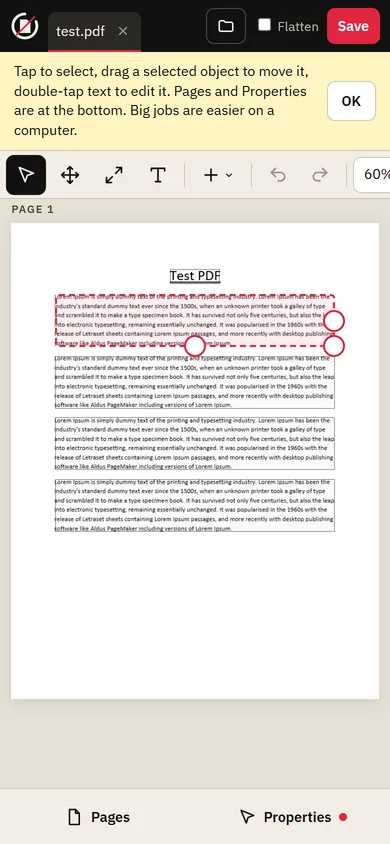
- Scroll by swiping anywhere except on the selected object.
- Tap something to select it: a paragraph, an image, a table.
- Drag the selected object with your finger to move it, or drag its handles to resize it.
- Double-tap text to edit it. The keyboard opens; tap outside the paragraph when you're done.
The Pages and Properties panels open as sheets from the bar at the bottom of the screen. In the Pages sheet, the arrow buttons on each thumbnail move a page earlier or later.
Sign on your phone
A phone is the easiest place to sign: you draw with your finger.
- Tap Insert, then Signature…
- Draw your signature with your finger. Turning the phone sideways gives you more room.
- Place it, then drag it onto the signature line and resize it from its corners.
See signing a PDF for typed and uploaded signatures.
Save the edited PDF
On a phone, Save downloads the edited file. On Android it goes to Downloads; on iPhone, Safari asks whether to view or download it, and downloads end up in Files → Downloads. From there you can share it by email or a messaging app.
Android and iPhone differences
- Long-press menus (the phone version of right-clicking) work on Android. On iPhone, use the Insert button and the Properties sheet instead.
- Save As isn't shown on phones, since phone browsers can't save to a chosen file; Save downloads a copy instead.
Tips
- For long documents and big tables, a computer is more comfortable: a mouse is more precise than a finger, and you get keyboard shortcuts.
- Your open documents survive a page reload, but close after 60 minutes without use. Save before you switch to another app for long.
- Filling in a form? See filling in a PDF form.